Invite Members to Your Community
Overview
Inviting members is the first step in turning your space into an active community.
Rather than inviting everyone at once, start with a small group of highly aligned members. Early participants shape the culture, tone, and engagement patterns of your community.
A strong first cohort creates momentum for future growth.
Ways to Invite Members
EKOS allows you to invite members in three different ways depending on how you want people to join:
Share invite link
QR code invitation
Auto-generate members from a file
Each method supports different types of community growth.
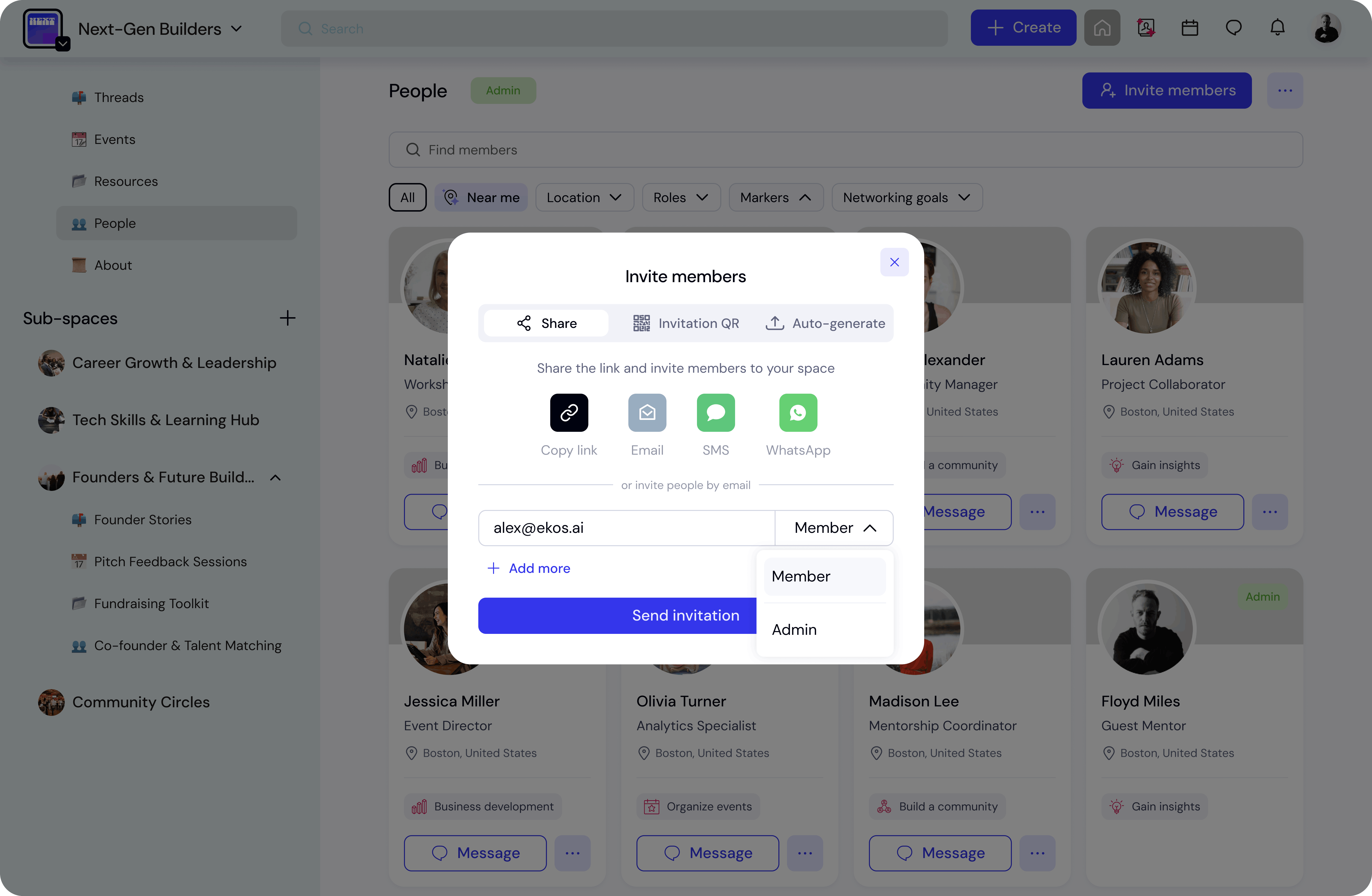
Method 1 — Share an Invite Link
The fastest way to invite members is by sharing your community invite link.
Open the Invite Members modal and select Share.
From here you can invite members using:
Copy Link – copy and share the invite URL
Email – send the invitation directly via email
SMS – send the invite link via text message
WhatsApp – share the invite through WhatsApp
This method is ideal for:
small curated communities
personal invitations
sharing invites during events or conversations
You can also manually add email addresses in the field below and send invitations directly.
Each invited user will receive an invitation to join your space.
Method 2 — Invite with QR Code
You can generate a QR code that links directly to your community invite.
Select Invitation QR in the invite modal.
EKOS will generate a QR code that people can scan to join the community.
You can also download the QR code to use in:
live events
presentations
posters or signage
event check-in desks
slides or printed materials
This method is especially useful for in-person events and conferences.
Members simply scan the QR code and follow the invite link.
Method 3 — Auto-Generate Members (Bulk Import)
For large communities, you can import members in bulk using a spreadsheet.
Select Auto-generate in the invite modal.
This method allows you to upload a template file containing member emails.
Step 1
Download the sample template.
Step 2
Fill in the required information in the spreadsheet.
Typically this includes:
email address
name (optional depending on template)
Step 3
Upload the completed XLSX file.
EKOS will automatically generate member profiles for the uploaded emails.
Each member will receive a temporary password via email.
They can then log in and update their profile information.
This method is best for:
importing existing communities
migrating from other platforms
onboarding large member lists
Event-Based Member Creation
If your community hosts events, new attendees can automatically become members.
When someone registers for an event, EKOS can add them to your community directory.
This helps convert event participants into long-term community members.
This approach is especially powerful for:
• professional networks
• conferences
• associations
• learning communities
Assigning Roles During Invitation
When inviting members manually, you can assign a role from the dropdown next to the email field.
For most communities, the default role will be:
Member
Roles can always be updated later in the member management settings.
Best Practices
Start by inviting a small group of engaged members before opening your community more widely.
Early members help establish:
the tone of discussions
the culture of participation
the initial activity inside the space
Communities grow through engagement, not just member count.
💡 Tip
If you’re hosting a live event, use the QR invitation on slides or signage.
Attendees can instantly join the community and continue the conversation after the event.